
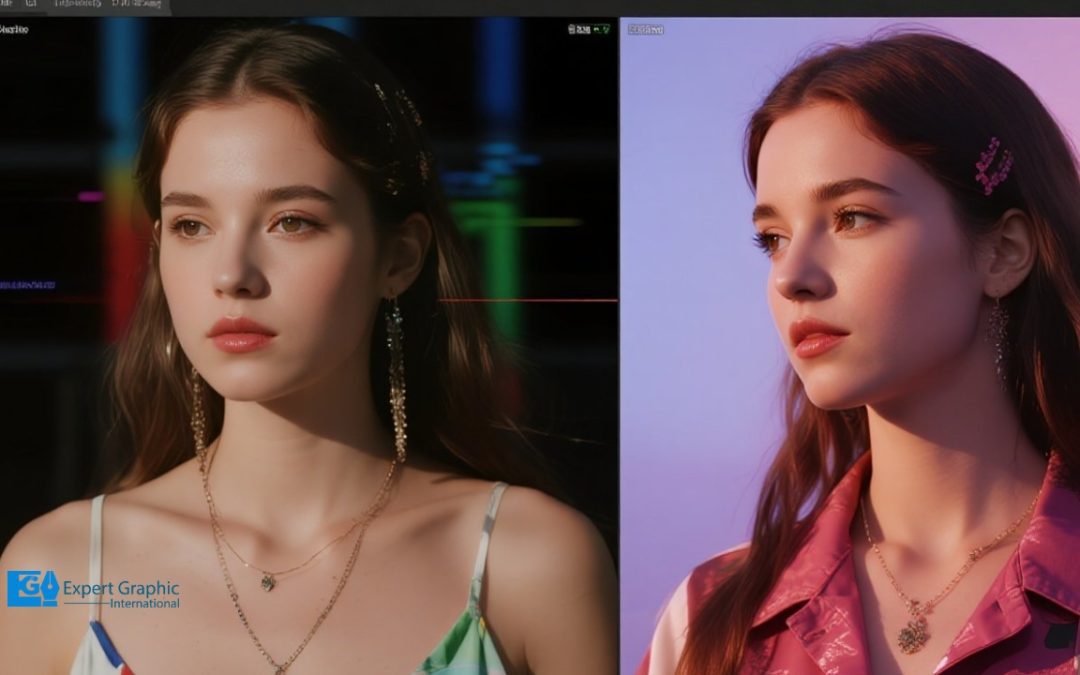
Improving image quality in Photoshop is all about a smart mix of size adjustments and post-processing polish. You start by using the Image Size dialog box to boost resolution through resampling methods like Preserve Details 2.0. Once you’ve got your pixels in place, you move to post-processing where you sharpen edges and clean up grain with noise reduction filters.
Your workflow gets a major leg up when you use Smart Objects for non-destructive editing and the High Pass filter to keep things crisp without making a mess. For the tough jobs, Advanced Optimization Protocols like diving into color channels or using Camera Raw help you balance smooth textures with sharp lines. While bumping up the resolution doesn’t “invent” new data from thin air, these steps ensure your final print or digital file looks top-shelf instead of a blurry, pixelated headache.
Traditional Method Step-by-Step Guide: Image Size Adjustment
The step-by-step guide utilizing traditional methods and essential shortcuts to increase resolution and add detail is outlined below.
- Open the Image File: Open the target image within Photoshop CC or your preferred Adobe application, such as Lightroom.
- Access the Image Size Dialog: Navigate to the menu bar and choose Image > Image Size. (Shortcut: Ctrl+Alt+I or Cmd+Option+I). This is where you adjust the dimensions and spatial resolution independently.
- Maintain Proportions and Define Dimensions: Ensure the chain icon linking the Width and Height properties is activated to maintain the current ratio (Constrain Proportions). Under Dimensions, enter the necessary values for Width, Height, and Resolution based on your specific needs, such as a certain print size for a poster.
- Select Resample and Interpolation Method: Check the Resample box, which allows the software to calculate new pixels to fill the new dimension requirements. Select an appropriate interpolation method:
- Utilize Preserve Details 2.0: For superior upscaling with minimal quality loss, select Preserve Details 2.0, which is designed to upscale images while maintaining textures and reducing pixelation.
- Choose Bicubic Smoother: If using older versions or seeking a general smoothing effect, select Bicubic Smoother, which is optimized for enlargement.
- Scale Layer Styles (If Applicable): If the image contains layers with applied styles, select Scale Styles under the gear icon within the dialog box. This ensures any applied effects scale correctly with the resized image dimensions.
- Confirm Resampling: Click OK to apply the changes, resampling your resized image based on the chosen interpolation method. The new file size appears at the top of the Image Size dialog box, replacing the old file size listed in parentheses.
Post-Processing Adjustments for Clarity
After optimizing the resolution, applying subsequent filters and smart adjustments is necessary to bring out textures and fix any resultant noise.
- Apply Sharpening: Use the Unsharp Mask or the High Pass filter method to increase local contrast and definition. The High Pass filter is a powerful, non-destructive technique focusing on adding detail through filtering edges.
- Reduce Noise: Utilize noise reduction filters (found under Filter > Noise > Reduce Noise) to smooth out graininess, particularly in images that have been significantly upscaled or shot in low light.
- Leverage AI-Powered Filters: For specialized restoration and upscaling, modern Photoshop versions offer AI-powered Neural Filters, such as Super Zoom or Photo Restoration, which use machine learning techniques to further increase resolution and fidelity with enhanced detail addition.
Is increasing resolution equivalent to improving image quality?
No, increasing resolution interpolates existing pixels rather than adding true detail. The Image Size dialog increases the total pixel count by estimating new data values based on surrounding pixels. The surrounding pixels provide color information for the interpolation algorithms to calculate averages. The interpolation algorithms, such as Bicubic Smoother or Preserve Details 2.0, determine the final clarity of the upscaled image. The upscaled image often requires subsequent sharpening to restore edge contrast lost during the expansion process.
Which resampling method works best for enlarging low-resolution files?
The Preserve Details 2.0 algorithm functions as the superior method for significant enlargements. Preserve Details 2.0 utilizes artificial intelligence to distinguish between image noise and essential structural lines. The structural lines remain sharp while the algorithm suppresses the artifacts typically generated by standard bicubic sampling. Standard bicubic sampling relies on mathematical averages that soften high-contrast edges to hide pixelation. Pixelation degrades the visual fidelity of professional prints.
Does converting to a Smart Object affect the sharpening workflow?
Yes, converting a layer to a Smart Object enables non-destructive editing for all filter applications. A Smart Object encapsulates the original raster data within a protective container. The protective container allows the editor to adjust filter parameters, such as the Radius or Amount in Unsharp Mask, at any future time. Future adjustments prevent the permanent data loss associated with applying filters directly to a rasterized layer. The rasterized layer permanently discards pixel information once the user saves the modification.
Why does the High Pass filter improve sharpness without adding noise?
The High Pass filter isolates high-frequency brightness changes while neutralizing low-frequency areas into a neutral gray. The neutral gray becomes transparent when the editor applies the Overlay or Linear Light blend mode. The Overlay blend mode enhances the contrast specifically along the detected edges without affecting the flat color areas. The flat color areas often contain grain or digital noise that standard sharpening tools might accidentally accentuate.
Advanced Optimization Protocols
What is the effective workflow for reducing noise in low-light photography?
The process involves distinct stages to balance luminosity and chrominance noise reduction protocols. The effective procedure includes the following steps:
- Analyze the Channel Data: The user must examine the Red, Green, and Blue channels individually to identify the specific channel harboring the most artifacts.
- Apply Surface Blur: The Surface Blur filter smooths the interior of objects while maintaining the integrity of the edges.
- Utilize Camera Raw Noise Reduction: The Camera Raw filter separates Color Noise from Luminance Noise for precise targeting.
- Mask the Sharpening: The Masking slider in Camera Raw restricts the sharpening effect solely to the strongest edges to prevent re-introducing grain.
How do resolution and pixel dimensions differ in print production?
Resolution defines the density of pixels per physical inch of printed substrate. Pixel dimensions represent the absolute measurement of the digital grid comprising the image width and height. The image width and height determine the maximum reproduction size before the human eye detects quality loss. The quality loss manifests as aliasing or “stair-stepping” on diagonal lines.