
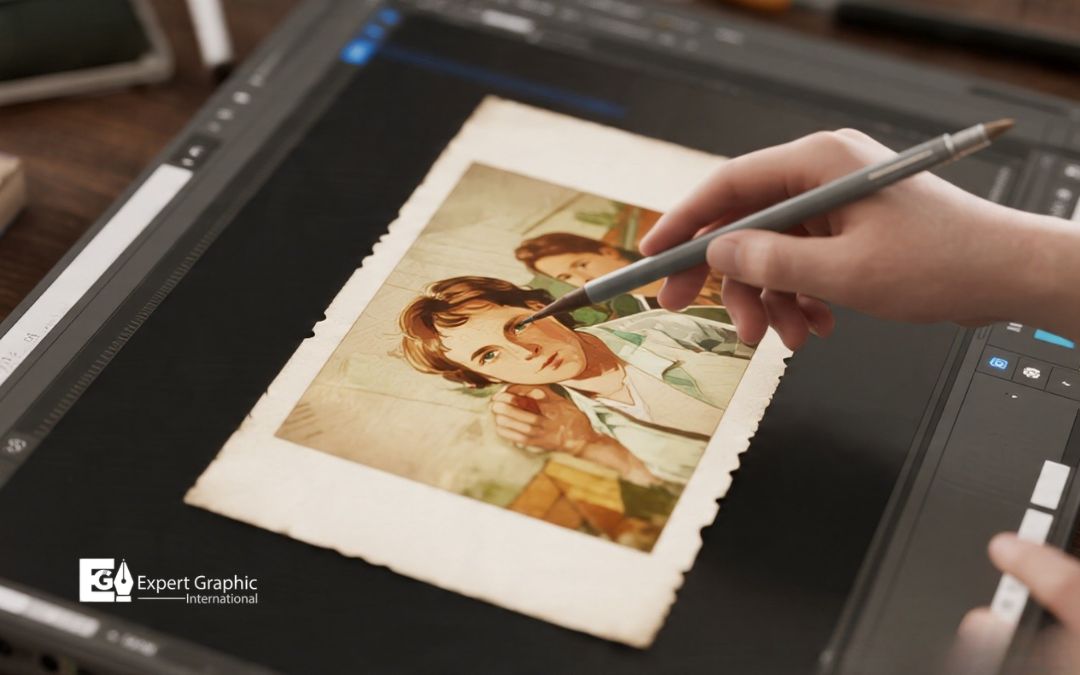
Photoshop’s AI photo restoration tools turn faded, scratched, or torn photos into something a magazine could publish with no clone stamp marathon required. Neural Filters and Generative Fill do the heavy lifting, and you just steer the process.
These tools tackle nearly every kind of damage you’ll run into. Scratches, tears, dust, stains, fading, missing chunks, blurry faces, and grainy low-res scans all get fixed in a few clicks.
Your toolkit includes Neural Filters, Generative Fill, the Remove Tool, Spot Healing Brush, Clone Stamp, and Camera Raw’s Super Resolution. Each one handles a different job, from filling a missing corner to sharpening a blurry face.
Before you touch a single filter, prep work matters. Scan your photo at 600 DPI, save it as a TIFF or PSD, and convert the layer to a Smart Object so you can undo AI changes later.
From there, restoration follows a clear nine-step path: import the image, run Neural Filters, adjust scratch reduction, patch tears with Generative Fill, enhance faces, colorize if needed, sharpen details, clean up leftover flaws by hand, then export.
Scratches, dust, and tears each get their own fix: the Remove Tool for small stuff, Generative Fill for the big gaps. Faded color and black-and-white shots come back to life through Colorize, Curves, and Hue/Saturation adjustments. Blurry faces and soft details sharpen up fast with Face Enhance, AI Denoise, and Super Resolution.
Even the roughest photos missing corners, heavy tears, water stains, mold spots have a path back to normal, usually through a mix of AI reconstruction and manual touch-ups.
So how does Photoshop stack up against Topaz Photo AI, Remini, and Luminar Neo? It wins on control and precision, though it asks more of you upfront. We’ll break down when to reach for Photoshop versus a specialized app, then answer the questions people ask most about bringing old family photos back to life.
What is AI photo restoration in photoshop?
AI photo restoration in Photoshop is a set of machine-learning neural filters that automate the repair of aged, faded, or physically damaged photographs. AI photo restoration is a digital image reconstruction process that utilizes neural networks to identify and correct visual imperfections. Adobe Photoshop executes these processes using the Photo Restoration Neural Filter. This filter resides within the Neural Filters submenu. The toolset incorporates specialized sliders for image enhancement, facial enhancement, and scratch reduction. This technology replaces manual tools such as clone stamps and healing brushes. A single click restores damaged images. Users achieve optimal results through slider adjustments, if the image requires specific refinement.
What types of old photo damage can photoshop AI repair?
Photoshop AI is a digital restoration software that repairs scratches, tears, dust, stains, fading, discoloration, missing sections, blurry faces, and low-resolution distortions.
The types of old photo damage Photoshop AI repairs are outlined below.
- Scratches: Firefly AI identifies surface abrasions on vintage prints. The software fills thin lines and blends textures with surrounding pixels. This process restores the original appearance without visible marks.
- Tears: Generative AI analyzes image data to reconstruct ripped areas. The tool mends physical separations in paper photos. It recreates visual information with structural accuracy using the Generative Fill feature.
- Dust and stains: Automated filters detect unsightly specks and chemical residues. The software eliminates water spots from aged photographs. This digital cleaning preserves authentic grain while removing artifacts from the canvas.
- Fading and discoloration: Machine learning models reverse UV damage. The algorithm restores vibrant hues to washed-out images. It adds realistic color to black-and-white portraits for a modernized and life-like appearance.
- Missing sections: Generative fill technology predicts lost corners or large holes. The AI paints matching backgrounds and textures. This synthesis makes the image whole again through deep learning content prediction.
- Blurry faces: Facial enhancement tools reconstruct lost details by sharpening features. The AI refines eyes and skin textures. It brings clarity to out-of-focus portraits while maintaining the subject’s unique character.
- Low-resolution images: Advanced upscaling techniques increase pixel density and improve sharpness. The software transforms pixelated scans into high-definition files. This process creates clear images suitable for modern professional printing.
Which photoshop AI tools are best for restoring old photos?
Photoshop AI tools best for restoring old photos are Neural Filters, Generative Fill, the Remove Tool, the Spot Healing Brush, the Clone Stamp, and AI Super Resolution. Photoshop is an image editing software that contains AI-powered restoration features.
The tools for Photoshop photo restoration are listed below.
- Neural filters are AI-powered algorithms that identify and repair cracks, scratches, and noise while enhancing facial features in vintage portraits with minimal manual effort for the professional editor.
- Generative fill is an AI feature that Adobe Firefly powers to reconstruct missing portions of damaged photos or remove large obstructions using contextually accurate pixels from text prompts.
- Remove tool and spot healing brush are intelligent brushes that analyze surrounding patterns to paint over blemishes, dust spots, and small tears to clean digitized film scans efficiently.
- Clone stamp is a manual utility that provides control as the user samples pixels from specific photo regions to paint over damaged areas for repairs on complex photographic textures.
- Camera raw AI Super resolution is a machine learning process that quadruples the pixel count of low-resolution old photos to improve clarity and prepare images for high-quality modern printing.
How to prepare old photos before AI restoration?
To prepare old photos before AI restoration, technicians clean physical prints, digitize images at 600 DPI, and utilize lossless file formats. Photo preparation is a digital preservation workflow that optimizes image data for algorithmic enhancement. The steps of photo preparation for AI restoration are outlined below.
- Scanning recommendations: Scanner settings at 600 DPI capture textures and edges. Clean glass surfaces and cotton gloves prevent damage and surface debris from interfering with AI algorithms.
- Best file formats (TIFF, PSD): TIFF files preserve lossless data during digitization. PSD formats maintain layers and high-bit depth color information throughout the subsequent manual and algorithmic restoration processes.
- Working with Smart Objects: Smart Objects protect original pixels from alteration. This container allows the adjustment of AI filter settings, if the user requires specific restoration modifications.
- Creating non-destructive edits: Adjustment layers facilitate contrast and color corrections without base image modification. This methodology ensures the original scan remains untouched, if the project requires revision.
How to restore old photos in photoshop using AI (step-by-step)?
Restore old photos in Photoshop using AI by following a nine-step digital restoration workflow. Photoshop is a professional image editing software that utilizes Adobe Firefly AI models for automated photo reconstruction.
The steps of AI photo restoration are outlined below.
- Import the image by opening the scanned photo in photoshop. Convert the background layer into a smart object to enable non-destructive AI adjustments.
- Navigate to filter, then neural filters to locate the photo restoration tool. Toggle the activation switch to initiate automatic damage detection and lighting repair.
- Adjust the scratch reduction slider within the neural filters panel. This setting eliminates cracks and creases while the AI preserves original surface textures and grain.
- Use the lasso tool to select deep tears or missing pixels. Activate generative fill with no text prompt to reconstruct the area via firefly AI.
- Toggle the enhance face feature to reconstruct facial details. The AI identifies hair, eyes, and skin to sharpen blurry features in portrait subjects automatically.
- Apply the colorize neural filter to add vibrant tones to monochromatic photos. This tool identifies specific elements and applies realistic colors to skin and backgrounds.
- Increase the photo enhancement slider to boost clarity and contrast. This function sharpens soft details and increases the perceived resolution of the digital image file.
- Inspect the image for AI artifacts or remaining imperfections. Use the spot healing brush or clone stamp tool to refine manual details, if imperfections remain.
- Save the final file via the export as menu. Select high-quality formats such as JPEG, PNG, or TIFF to preserve the ai-enhanced visual data.
How to remove scratches, dust, and tears using photoshop AI?
Photoshop AI is a digital imaging tool that removes scratches, dust, and tears using automated Neural Filters and generative pixel synthesis.
The methods for photo restoration in Photoshop are outlined below.
- The Remove Tool replaces damaged areas through brush strokes over scratches. It analyzes surrounding pixels to synthesize textures that match the original photo composition perfectly.
- The Spot Healing Brush eliminates small specks and minor tears through proximity matching. It blends sampled areas into existing images to repair minor surface imperfections.
- The Clone Stamp samples clean image sections to cover significant tears manually. It provides precise control over texture integrity, if automated AI processes require manual assistance.
- The Generative Fill feature synthesizes new pixels for missing or heavily damaged sections using text prompts. It completes historical scenes by reconstructing complex structural details.
How to restore faded colors and black-and-white photos?
Users restore faded colors and black-and-white photos by applying AI-powered tools and manual tonal adjustments. Photo restoration is a digital image processing technique that reverses age-related degradation.
The techniques for photo restoration are outlined below.
- Colorize: Colorize applies natural tones to monochrome images. This AI tool analyzes pixel scenes and assigns realistic hues. It transforms historical photos into vibrant visual records.
- Neural Filter: Neural Filter utilizes artificial intelligence for complex restorations. This feature removes physical scratches and reduces digital noise. It enhances facial details to streamline the manual editing workflow.
- Curves and Levels: Curves and Levels adjust image contrast and tonal ranges. Levels define black and white points. Curves provide precise control over midtones to restore depth and vibrancy.
- Hue/Saturation: Hue/Saturation corrects color shifts and age-related degradation. This adjustment layer targets specific color channels. It boosts vibrancy or removes yellowing from old, faded photographs.
- Color Balance: Color Balance adjusts the overall mixture of colors. This tool neutralizes color casts in highlights, midtones, and shadows. It ensures a natural appearance across the entire image.
- Camera Raw adjustments: Camera Raw adjustments enable non-destructive editing of photo scans. This panel utilizes clarity, texture, and dehaze tools. These settings recover lost details and sharpness in damaged images.
How to enhance faces and improve image quality?
To enhance faces and improve image quality, users utilize automated AI enhancers and manual editing software to restore facial details and increase pixel resolution. AI face enhancement is a digital imaging technology that recovers specific features from portraits, selfies, and group photos. Automated algorithms sharpen blurry features and upscale resolution in a single action. These platforms remove background noise to produce clear visual outputs. Nero AI Face Enhancer restores details from low-resolution sources to generate smooth skin and visual depth. Manual editors provide control over lighting and color balance. Automated tools provide instant repairs, if speed is the primary requirement. Browser-based interfaces facilitate image uploads for rapid processing.
The methods of image quality enhancement are outlined below.
- Face Enhance is a specialized AI technology that recovers facial details from portraits. It restores clarity to blurry features and balances lighting for natural results in one click.
- AI Denoise is a digital filtration method that removes grain and background noise from images. It clarifies low-light photos and preserves essential textures without loss of structural integrity.
- Super Resolution is a pixel upscaling process that increases image size and density. It converts low-resolution files into high-definition assets through advanced neural network reconstruction and analysis.
- The Sharpening technique is a contrast enhancement method that emphasizes edges and fine details. It reduces blur within visual features and creates distinct boundaries between subjects and backgrounds for clarity.
How to restore severely damaged old photographs?
Severely damaged old photographs are restored through high-resolution digitization and multi-layered digital editing. Old photograph restoration is a digital preservation process that repairs physical and chemical damage to return images to their original state. The restoration processes for damaged photographs are outlined below.
- Missing corners: Generative AI tools and cloning stamps reconstruct missing corners. These tools sample adjacent textures and patterns to fill gaps. This technique restores the structural integrity of the original photo borders.
- Heavy tears: Digital brushes and AI repair tools bridge deep physical gaps. These systems match the original photo texture and color. This unification joins fragmented sections leaving no visible seams.
- Water damage: Exposure and contrast adjustments neutralize moisture-induced distortions. High-resolution scans stabilize the image. This recovery reveals details obscured via color bleeding and preserves the image’s overall integrity.
- Mold and stains: Blemish removers and pixel-level editing target fungal spots. These tools lift unwanted liquid discolorations. This protection saves genuine photographic details and underlying texture from further surface degradation.
- Extensive reconstruction: Complex reconstruction utilizes reference images to rebuild facial features and backgrounds. This method combines manual cleanup with AI enhancement. These steps return heavily deteriorated photographs to their original state.
Photoshop AI vs. Other AI photo restoration tools
Photoshop AI is an integrated software suite that combines generative artificial intelligence with manual manipulation tools. The comparative features and usage scenarios for Photoshop AI are outlined below.
- Photoshop provides a non-destructive layers system for manual adjustments. Topaz Photo AI utilizes specialized algorithms for superior noise reduction and sharpening on a global level.
- Photoshop requires manual input for facial reconstruction. Remini features high-speed generative AI specifically for facial detail enhancement and mobile-first restoration workflows.
- Photoshop emphasizes professional workflow integration. Luminar Neo offers dedicated AI extensions for specific tasks like power line removal and automatic sky replacement.
- Photoshop is the superior software tool for complex repairs involving physical damage, color correction, and granular layer control if the project requires maximum precision.
Does Photoshop have an AI photo restoration tool?
Photoshop has included a built-in AI photo restoration tool since version 22.0, released in 2021. You’ll find it under Filter, Neural Filters, Photo Restoration. The AI analyzes noise, scratches, and fading, then applies corrections automatically. Photoshop Elements offers a similar one-click option under Enhance, Restore Photo. Generative Fill, added in 2023, extends repairs to tears and missing sections.
Can Photoshop restore torn photos?
Yes, Photoshop restores torn photos using Content-Aware Fill and Generative Fill. Select the torn or missing area, and the AI rebuilds it by matching surrounding texture, color, and pattern. For severe tears, you duplicate torn pieces onto separate layers, align them, then blend edges with the Clone Stamp and Healing Brush for a seamless final image.
Is Generative Fill good for damaged photos?
Generative Fill excels at repairing damaged photos, especially tears, missing sections, and large gaps. Select the damaged area in your photo, and the AI generates matching content in seconds, work that once took hours with the Clone Stamp. For fine scratches, dust, and stains, pair it with the Photo Restoration Neural Filter for the strongest overall result.
Can AI colorize black-and-white photos?
Yes, AI colorizes black-and-white photos in Photoshop through the Colorize Neural Filter, which detects objects and applies realistic hues automatically. For sharper results, Generative Fill with partner models like Gemini adds color to your photo through a simple text prompt. Adjust saturation and target specific areas afterward to correct flat skin tones or muted colors.
Which Photoshop version supports AI restoration?
Photoshop 22.0, released in 2021, first bundled Neural Filters, including early restoration tools. Generative Fill arrived in Photoshop 25.0 in 2023, and the Photo Restoration Neural Filter and partner AI models like Gemini now run best on Photoshop 2026, version 27.x. Update through Creative Cloud and confirm your version under Help, About Photoshop, before starting a restoration project.
Can Photoshop restore very old family photographs?
Yes, Photoshop restores very old family photographs, even those with cracks, fading, and torn edges. Generative Fill with the Gemini 3 Nano Banana Pro partner model rebuilds damaged areas while preserving facial features, a common concern with older AI tools. Scan your photos at high resolution first; sharper source files give Photoshop’s AI more detail to reconstruct accurately.